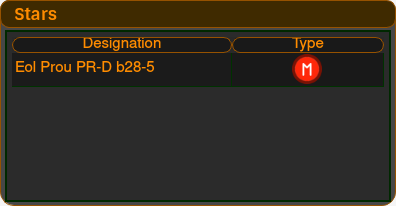
The Stars panel shows a table of the stars you have scanned in a system. Information displayed is Star Designation, and an icon for the star's Type.
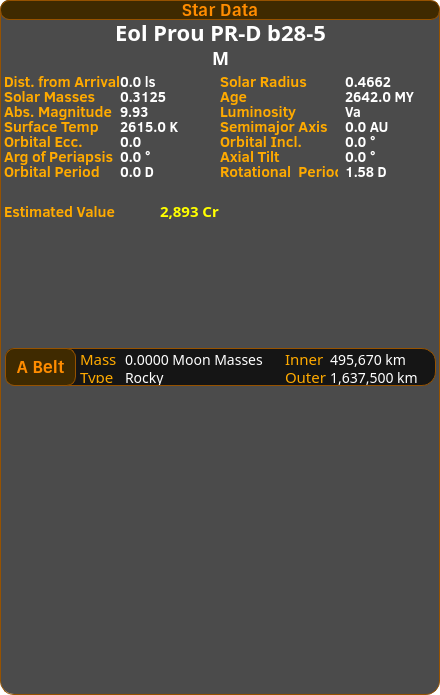
When you click on a Designation row, on the right hand side of the main window will be displayed a Star Information Panel, containing more detailed information about that selected star...
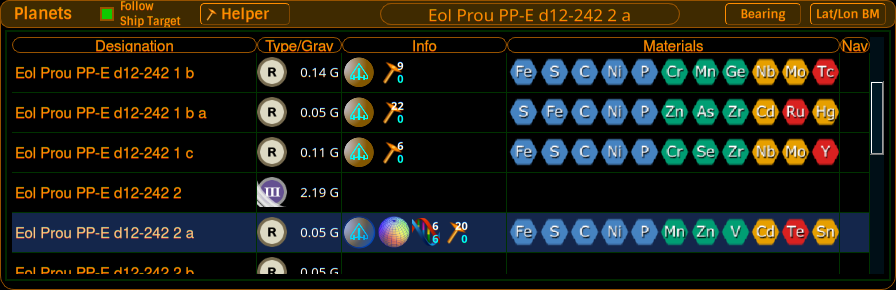
When you scan a planet/moon in a system, this table will become populated. It shows the body's Designation, Type, and Surface Gravity. If it's a landable planet, this will be indicated.
The Info column shows a few icons for the body - whether it's landable, its planet type, volcanism, and a count of any rings or signals found. A DNA icon shows the body's bio signal count with the analysed count beneath it, and a pickaxe icon shows mining location count with mapped count beneath (see the Mining Helper page). Landable planets always have a selection of Materials on them, which depends on the planet Type. Materials are shown as icons with the material's type shown as how they are known on the Periodic Table.
If you are unsure which material is which, move your mouse over that Material icon, and shortly thereafter a tooltip will display the name of the material in full.
The Nav column shows a small icon on a planet's row if there are Lat/Lon Bookmarks stored for that planet - clicking it opens the Lat/Lon Bookmarks panel for that body.
There's also a Follow Ship Target checkbox at the top of the panel. When ticked, the panel automatically follows whichever body you have targeted in the game.
When you click on a planet's Designation row, on the right hand side of the main window a Planet Data panel is displayed, containing more detailed information about that planet...
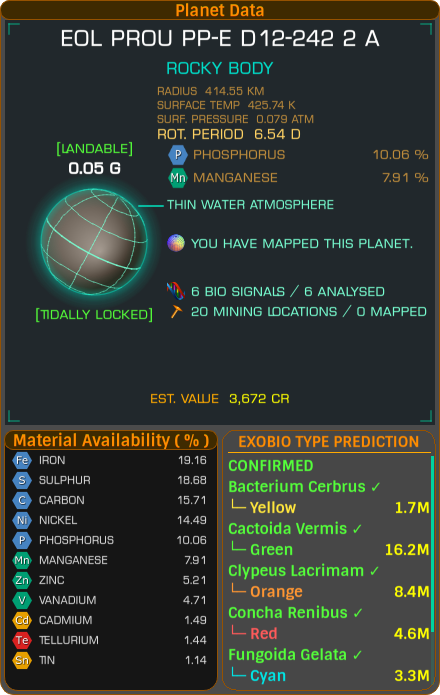
This shows the planet's class, its orbital parameters, surface gravity, and a little wireframe globe of the body. For bodies with rings, the ring composition and mass is listed, along with any material hotspots found in those rings (see the Ring Hotspots page). An Estimated Value for the body is shown at the bottom.
For landable planets, the panel also lists the available materials and their percentage availability.
The same planet data is shown on the in-game Overlay as a holographic wireframe widget, in the same style you see in the game's own Fuel Scoop System view.
Update your browser to view this website correctly.