 Captain's Log
Running Under Wine
Captain's Log is a Windows application, but it happily shares a Linux machine with Elite: Dangerous. The trick is simple: install Captain's Log into the same Wine prefix the game runs in. Wine then gives it the same view of the game's journal files and windows that it has on Windows.
A Wine prefix is a folder that behaves like its own Windows installation - its own C: drive, Program Files, registry and so on. If you installed Elite: Dangerous with Lutris, your game already has one.
Installing Captain's Log into the Lutris/Wine Prefix
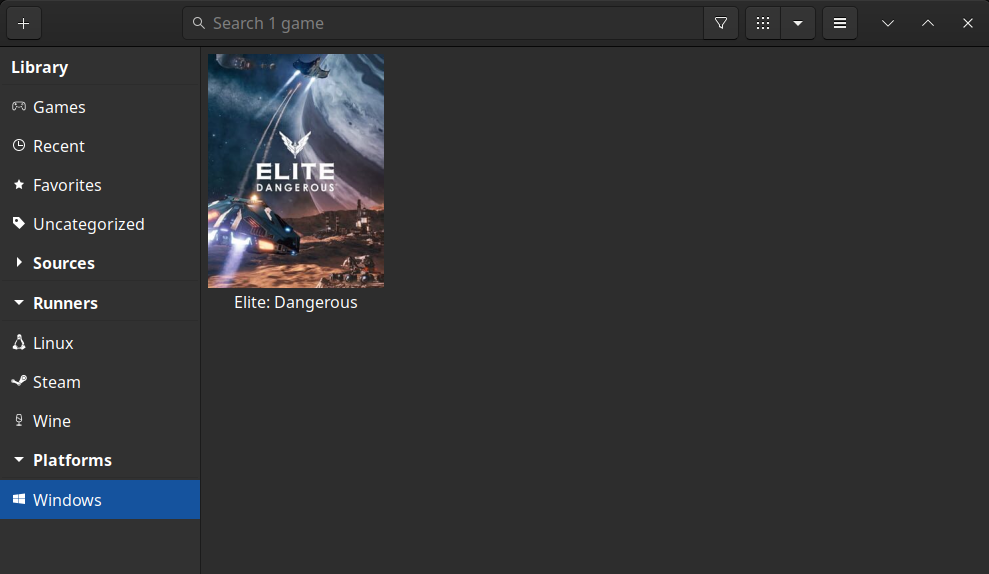
- In Lutris, select your already-installed Elite: Dangerous.
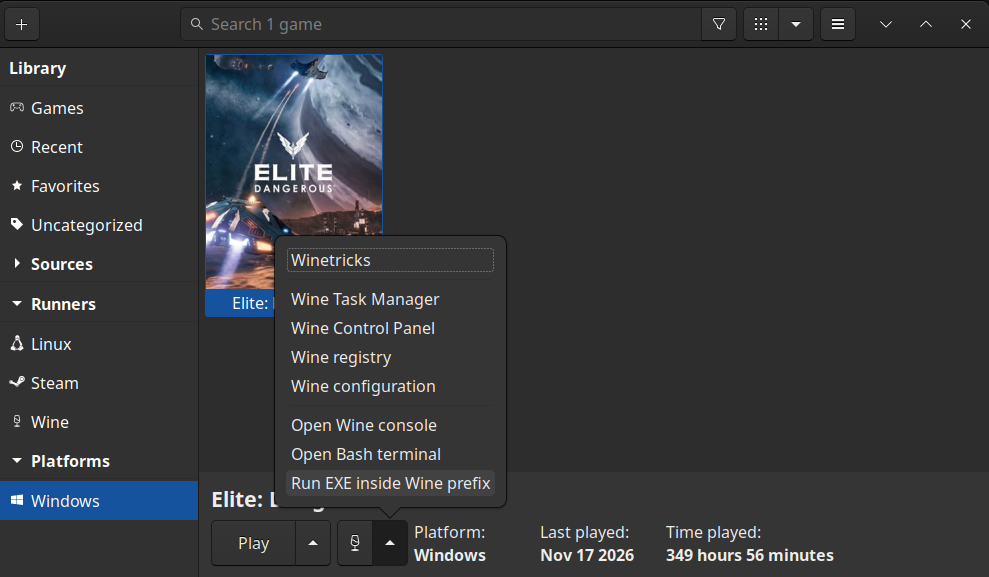
- Click the up-arrow icon next to the wine glass, and click Run EXE inside Wine prefix.
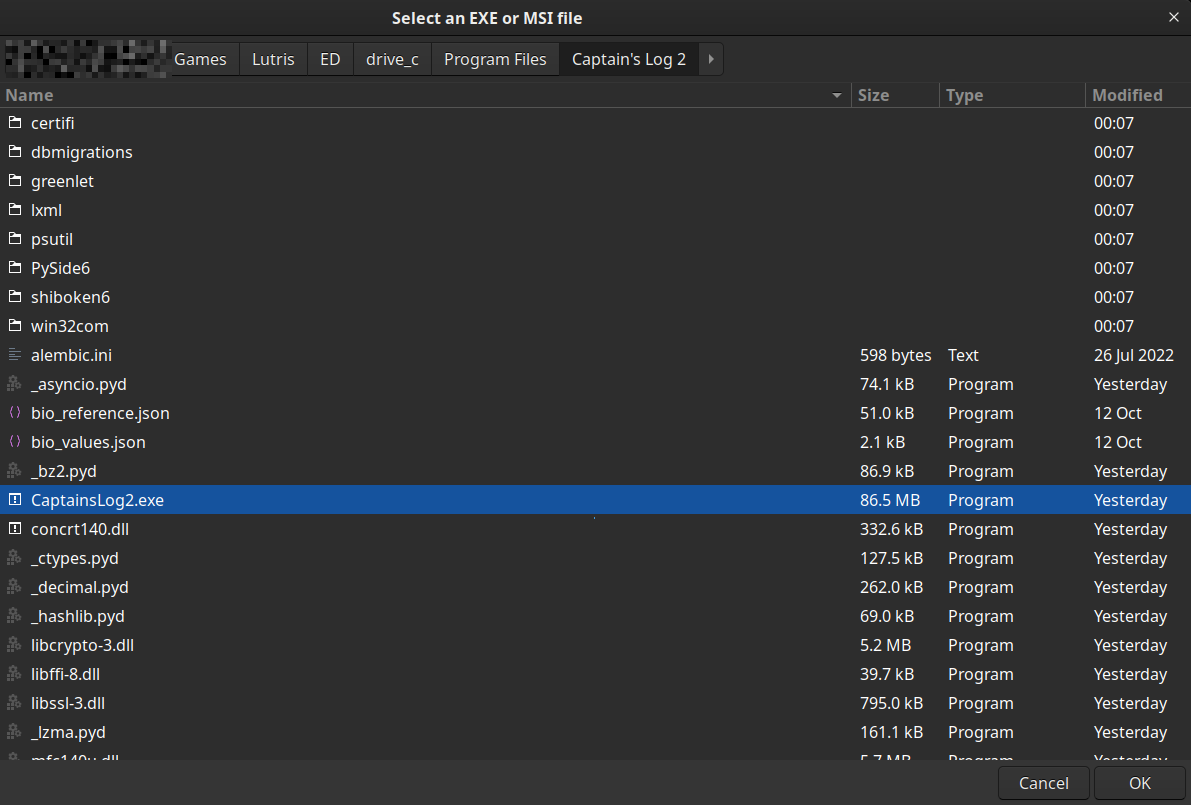
- Select the downloaded Captain's Log installer exe and run the installer as you would on Windows, using all the defaults offered by the installer.

Running Captain's Log Within the Lutris/Wine Prefix
-
In Lutris, select your already-installed Elite: Dangerous.
-
Click the up-arrow icon next to the wine glass, and click Run EXE inside Wine prefix.
-
Navigate to, and select, the CaptainsLog2.exe executable - the installer puts it in
C:\Program Files\Captain's Log 2inside the prefix. Captain's Log should now run.
- If this is the first time Captain's Log has run in this prefix, the First Run Configuration window appears. Captain's Log should automatically detect the Player Journal Files Location, and you can change the Trip Database Files Location from its default - useful if you already have a GALAXY.db and Trip databases produced by Captain's Log on a Windows installation, and your Linux PC can reach the drive holding those database files.
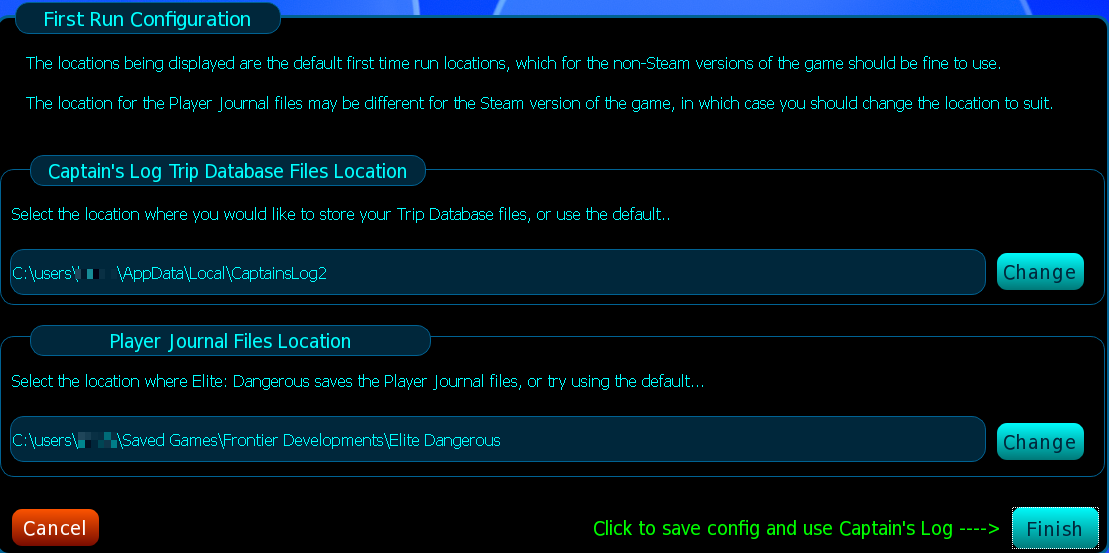
Complete the First Run Configuration and Captain's Log presents its main window.
- At any time you can reconfigure Captain's Log via the Configuration Manager's Directory Locations tab, as per the Configuration Manager page.
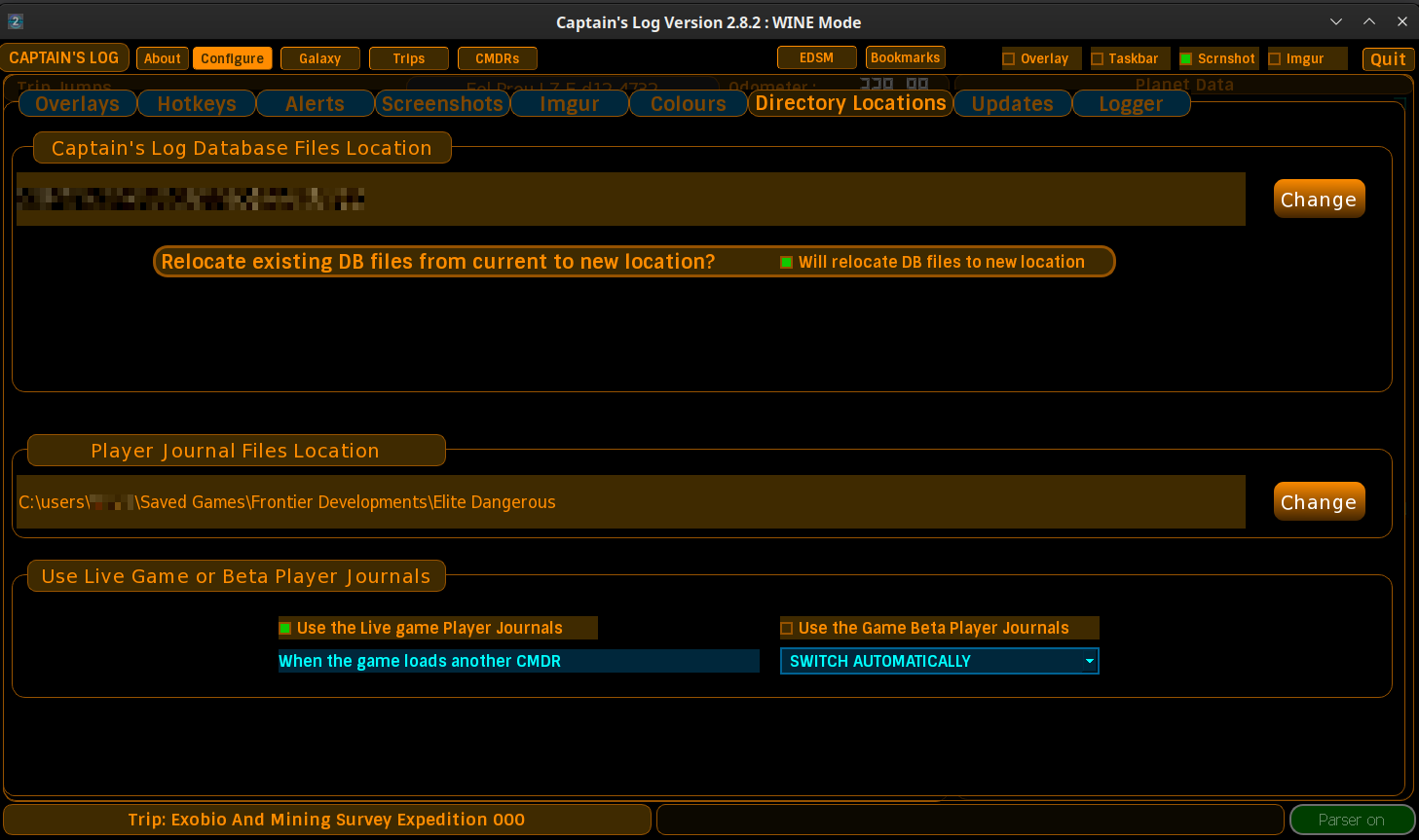
Where Are the Journal Files Under Wine?
Inside the prefix, exactly where Windows would put them:
drive_c/users/<your user name>/Saved Games/Frontier Developments/Elite Dangerous.
That is what Captain's Log's automatic detection finds. If your journals end up
somewhere else, point the Player Journal Files Location at the right folder in
the Directory Locations tab.
Steam/Proton
Captain's Log has not been tested by us under Steam/Proton - the recipe above
comes from Lutris. The same principle applies, though: Captain's Log wants to
run in the same Windows-compatible environment as the game, and the Steam
version of the game writes its journals inside its own Proton prefix (under
steamapps/compatdata/) rather than in a Lutris prefix - the First Run
Configuration window mentions this too.
If you get Captain's Log working alongside a Steam/Proton copy of the game - or it misbehaves - please tell us on the Captain's Log Discord server so we can document it properly here.
Getting Help
Support questions belong on the Captain's Log Discord server, and the frequently asked questions live here.