Download the installer and double-click. The default values are recommended.
The installer automatically removes the previous version of Captain's Log before installing the new one - your trip databases, GALAXY.db and configuration are not touched.
As always, it's still recommended to back up your DB files before running the new version.
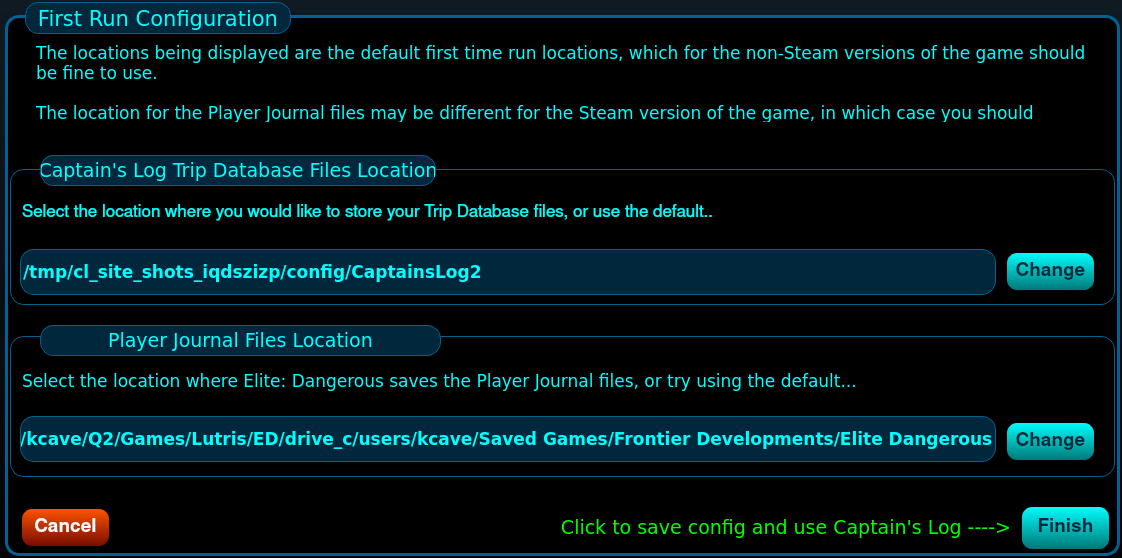
If this is the first time Captain's Log has been run, you will be presented with a Configuration window.
This is where your Trip databases will be stored. Click Change to bring up the directory selection dialog window.
The default is to the Captainslog2 directory located in your %LOCALAPPDATA% folder, and in most cases, this default location is fine.
This is the location to which the game generates its Player Journal files - these are the files which Captain's Log and other 3rd Party applications use in order to operate.
The default value should work, but if you know that this location is different for your particular installation, then click Change to bring up the directory selection dialog window.
Once the location has been selected, click on Finish.
You might be presented with an Update Available window. You can click on the URL shown in that window and it will open up the Captain's Log web site in your browser.
You will then be presented with the Captain's Log Main Window...
If Captain's Log ever misbehaves or closes unexpectedly, there is a log which can help track down what happened. The quickest way to see it is to open the Configuration Manager and click on the Logger tab - everything in the log is shown right there.
The log is also written to a file called CL2_log.txt, located in your Windows temporary folder - typically:
C:\Users\YourUserName\AppData\Local\Temp\CL2_log.txt
The quickest way to get there is to press Windows-Key + R, type %TEMP% and press Enter.
One thing to know: the log is re-created each time Captain's Log starts, so if the program crashed, grab the file before you start the program again. If you're reporting an issue on Discord, attaching that file is usually the fastest way to get help.
Update your browser to view this website correctly.