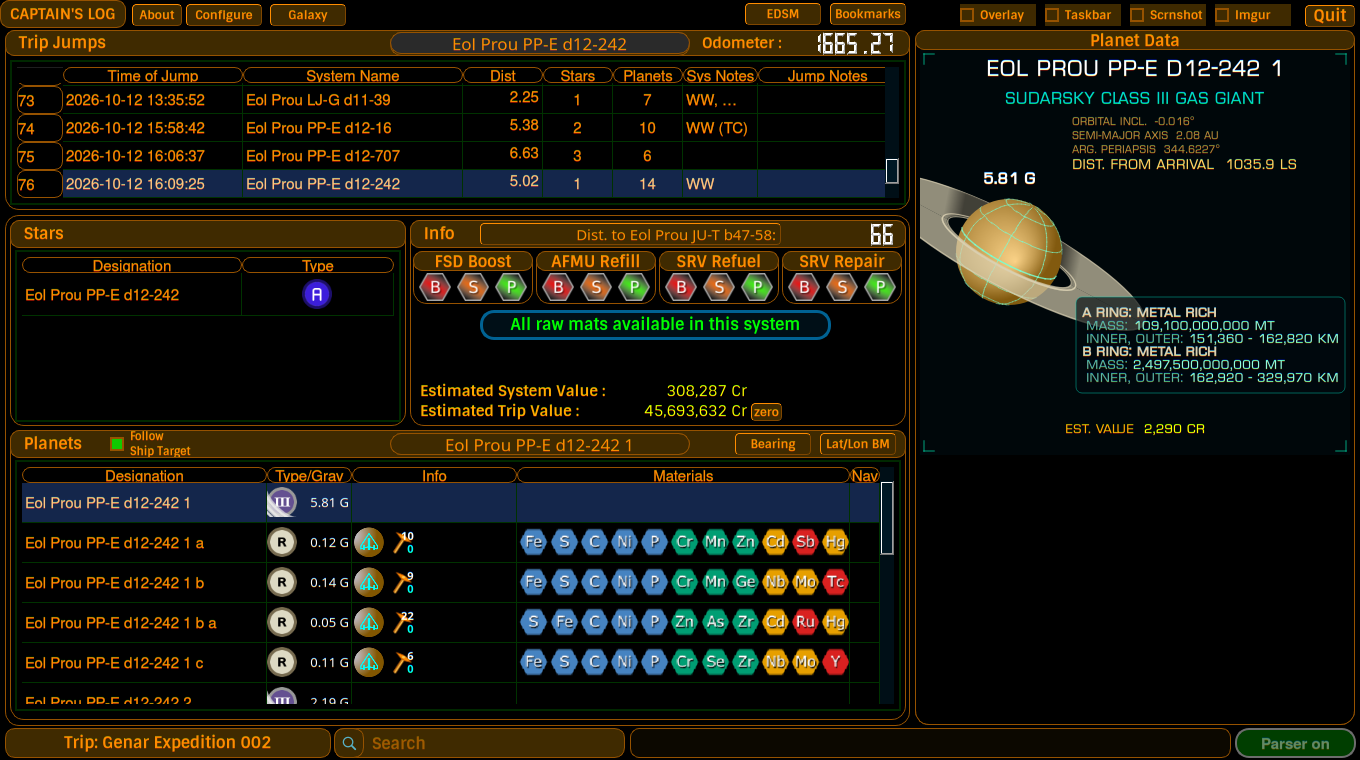
The main window is now resizable - drag any edge or corner, and the fonts scale along with it, so you can dial Captain's Log to whatever size suits your screen.
There are a number of buttons and checkboxes at the top of the main window.
About : brings up the About information.
Configure : displays the Configuration Manager
Galaxy : toggles the display of the Galaxy Browser
EDSM : Will toggle the display of the EDSM panel
Bookmarks : Will toggle the display of the Bookmarks panel
Overlay : Will put CL2 into Overlay Mode once the game is running.
Taskbar : disables the Windows Taskbar - upon exit of CL2 it will automatically re-enable the Windows Taskbar
Scrnshot : Once checked, this will start CL2's Screenshot Monitor
Imgur : Once checked, will start CL2's automatic screenshot uploads to Imgur - this needs some configuration to select either anonymous or Imgur user uploads.
The Configure, Galaxy, EDSM, and Bookmarks buttons light up when their respective panel is showing, so you can see at a glance what's open.
There are also a number of panels...
Trip Jumps : Will display your jumps to each system, including the time of the jump, system name, a count of star and planets you scan, System Notes, and Jump Notes
Stars : Displays a list of stars in a system which you have scanned.
Info : displays a number of useful pieces of information, such as if FSD Boost materials are available in this system, and/or if Auto Field Maintenance Unit (AFMU) materials are available in this system.
Dist. to Button : this is a button which when pressed, calls up the Set Target Destination panel, which you use to select a target star system. After one has been selected, this button shows the Distance to a target star system, in lightyears.
Estimated Trip Value : an running estimate of the value of the scans you've made on the current trip. There's a zero button next to it which zeroes the value (like resetting a trip odometer) so you can measure the value of a single journey, and a recall button which brings back the full trip total.
Planets : displays a list of any planets in a system you have scanned
Info column icons : the DNA icon shows the body's bio signal count with the analysed count beneath it; the pickaxe icon shows mining location count with mapped count beneath.
Bearing button : Toggles the display of the Bearing Calculator
Lat/Lon BM button : Toggles the display of the Latitude/Longitude Planetary Bookmarks panel
Helper button : only appears when the highlighted planet has mining locations - it toggles the Mining Helper overlay for that body.
There is also an Odometer, which keeps track of your accumulated FSD jump distance in lightyears.
On the right hand side, there is a large section, which is used for displaying more detailed information about stars and planets.
At the bottom of the main window, there are the following items...
Trip database name : displays the name of the currently loaded and active trip database.
When Captain's Log is run for the first time, or if the currently configured trip database could not be found, Captain's Log will revert to creating and using a default database called v2default. You are able to (and advised to) create a new Trip database.
Search : Any text entered here will be used to search for matches in the Trip Database's System Name, System Notes, or Jump Notes. Results will be displayed in a table, from which you can jump to the relevant row in the Trip Jumps table.
Status message : a generic information label which displays messages such as detected screenshots, or what the journal parser is currently doing.
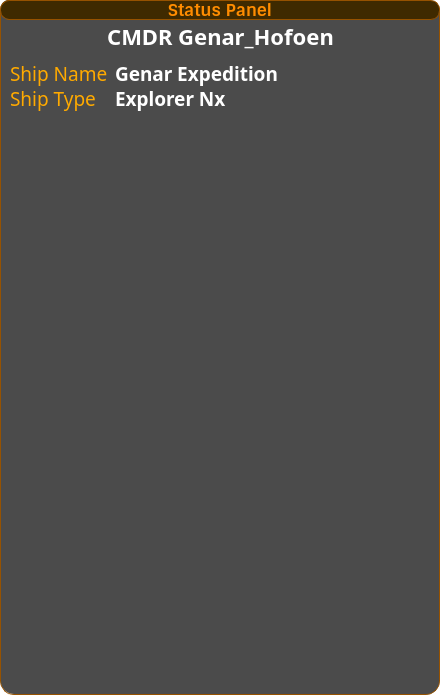
Status Panel
The Status Panel shows who's flying and what they're flying - the current CMDR name, the Ship Name, and the Ship Type. It's populated from the game's journal as you load into your ship.
System Tray
Captain's Log sits in the system tray while it's running. Right-clicking the tray icon gives you a menu with Toggle Main Window Visibility, Reset Main Window Position, Toggle Overlay Mode, and Quit.
Your browser is out-of-date!
Update your browser to view this website correctly.