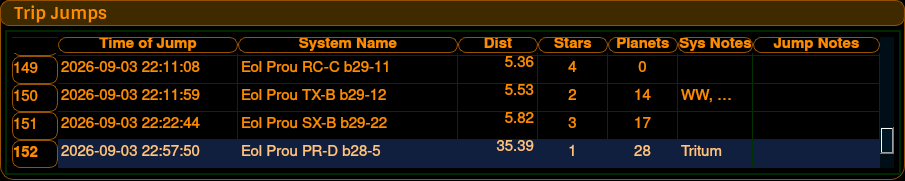
Once you start using Captain's Log, and as you start jumping around the galaxy, scanning stars and planets, the program begins to display lots of useful information...
This section shows a record of your FSD jumps to systems. Time/Date, System Name, the distance you jumped in LY, A count of any stars you scanned, a count of any planets you scanned, System Notes, and Jump Notes.
If you jump while docked to a carrier, Captain's Log records the carrier jump too. Because your ship is docked when the carrier makes the jump, there's no distance jumped or fuel used for that entry - it's logged as a jump all the same, just without those figures.
Bookmarks are a useful way of taking note of a certain system - maybe you found something really awesome at that particular jump/time and want to be able to quickly reference it.
To add a bookmark, select the desired row and double-click the Time Of Jump cell. That row will be added to your Bookmarks list. Additionally, a small popup dialog will appear and you can either enter a Bookmark Note or not - either way just press the Close button to remove this dialog...
Once a jump has been bookmarked, it will show up as a different colour, in the Jump Table...
To retrieve a list of all your bookmarks, click on the Bookmarks button (or press ALT-B). A panel will appear with the list of bookmarks...
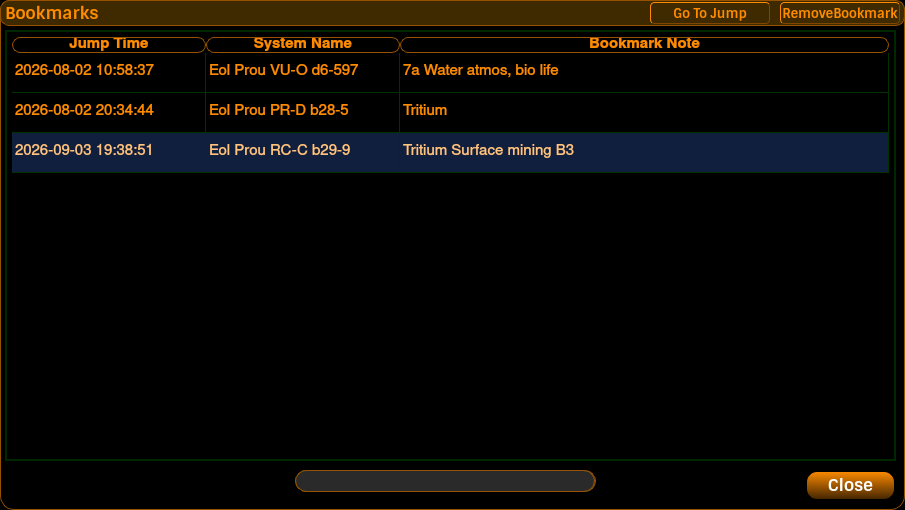
To go to a specific bookmarked jump on the Jump Table, highlight the relevant bookmark and click the Go To Jump button. The Bookmarks panel will close.
To remove a bookmark, highlight the relevant bookmark and click the Remove Bookmark button.
Another way of removing a bookmark without using this Bookmark Panel, is to double-click the Jump Time cell of the relevant row in the Jump Table (which you used to add the bookmark).
To close the Bookmarks Panel, click the Close button.
There is also a single-click-to-clipboard widget, which displays the system name of the currently selected bookmark - clicking on this causes it to flash, indicating it has copied the system name to your clipboard where you can paste the text somewhere.
System Notes are unique to each system. Make a system note for the Sol system, and this note will show up for every row in which the Sol system is displaying.
To make or edit a system note, simply double-click on the System Note cell of the relevant row of the jump table. An edit window will appear, and will display any existing note within it if one exists, or it will be blank, ready for you to enter text...
Once you have finished adding or editing your System Note, it will be saved when you press the Done button, and this window will be closed.
Captain's Log will also add a line to the System Note automatically when it spots a notable planet in the system during an FSS scan - things like Earth-like worlds, and (in later versions) terraformable Metal Rich and Ammonia Worlds. You're free to edit that auto-generated text if you want.
Jump Notes are unique for each FSD Jump. Adding a Jump Note is exactly the same as for System Notes - double-click in the Jump Note cell of the relevant row of the table. And like the System Notes, an editing window will appear, where you can edit or add your notes. Again, clicking the Done button will close this window and save the Jump note to the database.
Update your browser to view this website correctly.