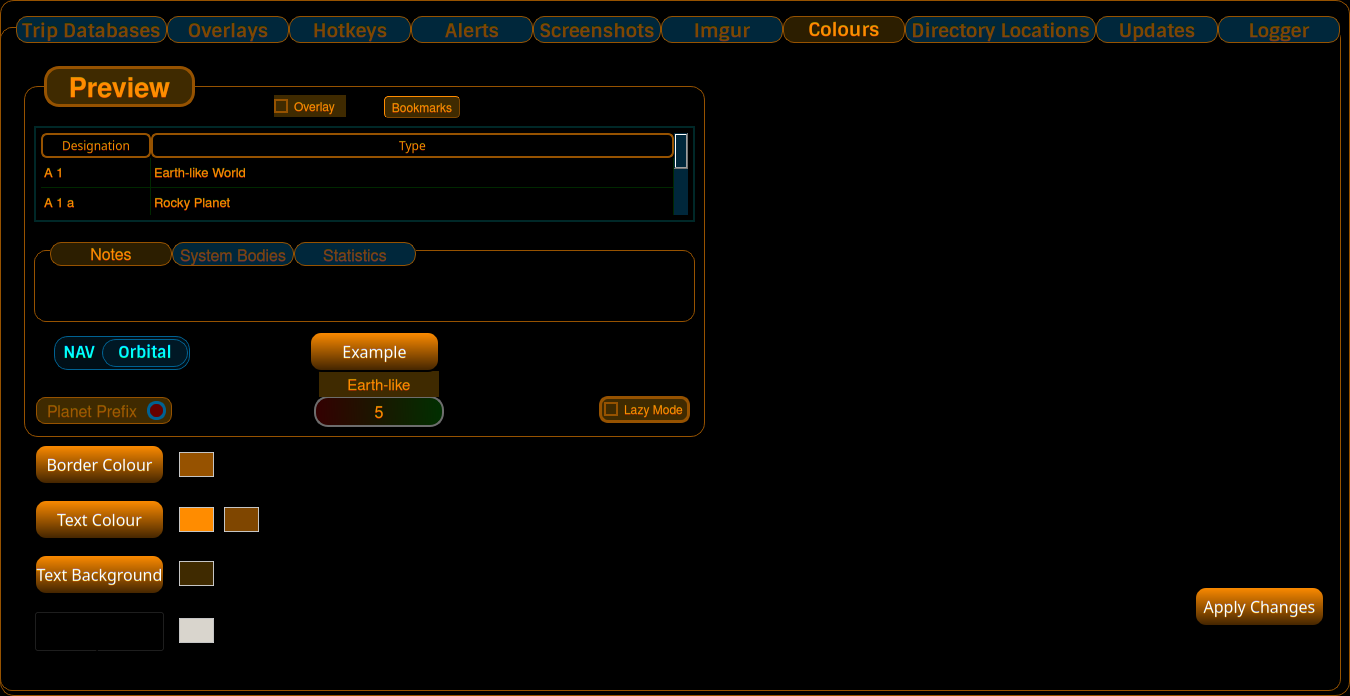
You can customise the colour scheme of Captain's Log.
Click on Border Colour, Text Colour, or Text Background buttons. This will bring up the colour selector widget on the right hand side. As you select a different colour, the Preview Window will show a preview of the colour changes on the various types of GUI widget used in Captain's Log, to give you a fair idea of how your changes will ultimately look.
There's also a separate background colour for the text labels used on the overlays, so you can tune those independently of everything else.
NOTE : You need to click on the OK button in the colour selector widget as shown above before you select a different Captain's Log colour to change.
After selecting your desired colour, remember to click OK on that colour selection dialog window.
When you are happy with your altered colour scheme, click on the Apply Changes button, which will apply the colour changes to the Captain's Log window, and also save this colour scheme for subsequent use.
You might find that tables don't properly change colour - in which case, simply exit Captain's Log and restart, which will properly change the table colour.
Update your browser to view this website correctly.