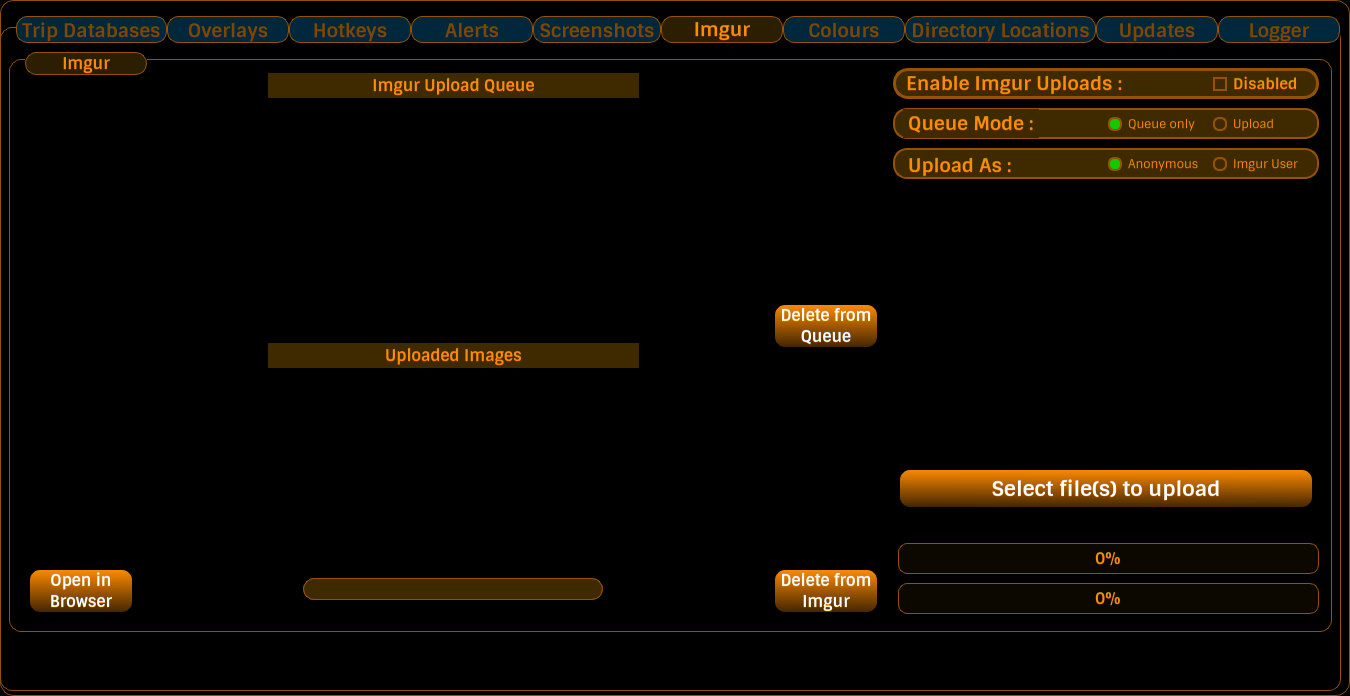
NOTE: Imgur has a file size limit of 20 MB, therefore Captain's Log will not upload pictures larger than this limit. Also note that Imgur themselves will convert PNG files larger than 5MB to JPGs.
Captain's Log can automatically upload converted screenshots to Imgur. You can upload either as an Anonymous user, whereby the pictures will not be under your Imgur account and will be standalone links, or you can choose to upload them to your Imgur user account's area.
Select Imgur User at the Upload As option...
If this is the first time you have run Captain's Log, or if for some reason your Imgur authorisation has been lost or become invalid, then you'll need to authorise Captain's Log before it can upload to your account.
Click the authorisation button. A new browser window will open on your PC. From there, log into your Imgur account.
Imgur will give you a Pin number.
Paste that PIN number into the entry box in the authorisation area and click on the Submit PIN button. Captain's Log will save the authorisation for subsequent use for uploading to your user account on Imgur.
(In earlier versions there was a built-in web browser for authorisation. That's gone now - the PIN method above is the only way, which is arguably the safer of the two anyway.)
There are two modes; Queue Only, or Upload
This is done by checking or unchecking the Enable Imgur Uploads checkbox. There is a corresponding Imgur checkbox at the top of the main window which you can use to enable or disable this feature.
You can also manually add files to upload to Imgur by clicking on the button marked Select file(s) to upload. A file selection dialog window will appear, and you can select one or more picture files to upload.
All successfully uploaded images will be listed in this area.
You can highlight a picture and the imgur link will be displayed on the Single-click-copy-to-clipboard widget at the bottom centre of this section. If you click on this, the link for that picture will be copied to your clipboard, and you can quickly paste that link to a web page or messaging forum.
You can also open that picture in your web browser by clicking the button called Open in Browser.
You can remove that picture from Imgur by clicking the button called Delete from Imgur.
Update your browser to view this website correctly.